
sBike FAQ
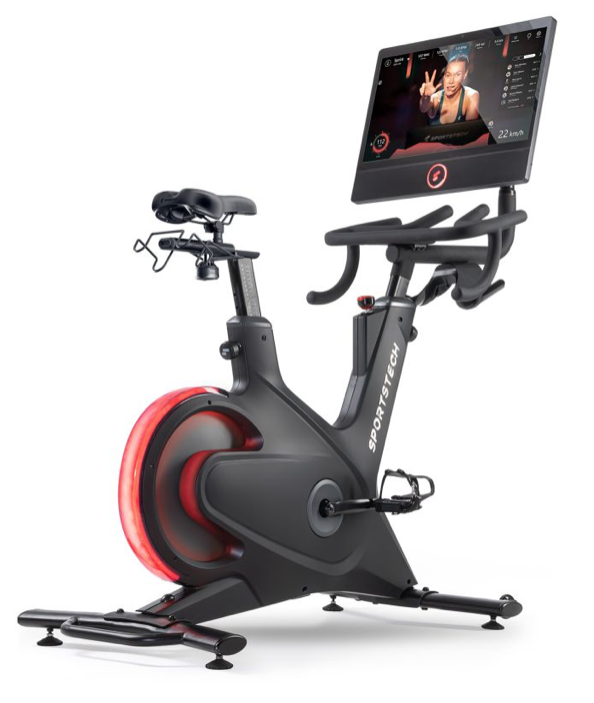
sBike product photo
sBike assembly video
Using the sBike monitor
FAQ
What is an sBike?
The sBike is our latest generation of speed bikes – innovative, limitless, and exhilarating. Combining a powerful bike with an interactive fitness app, you can take your fitness to the next level. Stream exciting workouts via the integrated app and start your Healthstyle Journey with your first ride. Next-level fitness has a new name: sBike
Do I need an internet connection to use the device?
Yes, an internet connection is required to use the device and register with the Sportstech Live app. Unfortunately, the device cannot be used without signing in to the app.
Is the sBike compatible with all Bluetooth heart rate belts?
The sBike is compatible with all Bluetooth heart rate belts.
What special features does the sBike offer?
The sBike takes your fitness to the next level with a 7-zone LED system that adjusts to the intensity of your workout. It creates a club atmosphere for your home gym and features a 21.5-inch touchscreen for easy operation. With the Sportstech Live app, integrated into the sBike and available for mobile devices, you get access to a wide range of workouts, a fitness community, leaderboards, challenges, recipes, and nutrition tips.
Accessing app content and subscription plans after purchasing your sBike
- Which subscription plans are available?
Freemium: This plan lets you continue using our basic features. You can connect your device via Bluetooth and keep track of all your fitness metrics.
Sportstech Live +: For those who want to enjoy the experience without limitations, Sportstech Live + offers full access to all app features. Experience a wide selection of workouts, enjoy inspiring landscape videos and healthy fitness recipes. Take part in challenges, climb the leaderboard, and follow training plans tailored specifically to your goals.
Can I add multiple user profiles?
Yes, up to 5 user accounts can be registered under your Sportstech Live membership. However, they must all belong to the same household. Your Sportstech Live membership may not be used by third parties who live outside your household. To create another user profile, first log out of your profile. You can then create additional profiles in the same way you created the first one – by clicking "Register account". Important: You will need a separate email address and password for each additional profile. All registered user profiles are listed under 'Switch account' in your profile.
What unique feature does the sBike offer for monitoring your heart rate during a workout?
The sBike revolutionizes workout monitoring with a unique, color-coded LED heart rate indicator. The indicator uses colors to represent different workout intensities: blue for relaxation (<110 BPM), aqua for light activity (110-126 BPM), green for fitness (127-144 BPM), yellow for aerobic training (145-161 BPM), orange for anaerobic training (162-179 BPM), red for the threshold zone (180-196 BPM), and purple for maximum effort (≥197 BPM). This intuitive visualization allows users to effectively control and optimize their workout intensity.
How does the sBike differ from the sBike Lite?
The sBike features a large 360° screen and integrated speakers for an immersive workout experience. In comparison, the sBike lite features a user-friendly button console and a flexible 360° tablet/smartphone holder, ideal for creating a simple and effective workout. Both models combine robust construction and quality to meet the needs of different users.
What user heights is the sBike suitable for?
Yes, the sBike is specially designed to provide optimal comfort for users between 1.65 m and 2.00 m tall (maximum height: 2.00 m). It accommodates both shorter and taller users and provides an effective and comfortable workout experience for a wide range of users.
The handlebar can be secured using the front adjustment knob. If it comes loose, tighten the knob. You will need a 16 mm wrench to do this.
Do standard comfort saddles fit the sBike?
The saddle mount is a standard, commercially available size, so standard comfort saddles will fit.
How much do the sBike shipping boxes weigh?
Package 1: gross 60,48 kg / net 55,32 kg. Package 2: gross 16,78 kg / net 13,84 kg. Version V2: Package 1 gross 55,38 kg / net 50,98 kg, Package 2 gross 9,86 kg / net 8,41 kg.
Is the sBike available with a 10.1″ display?
The 10.1″ version is no longer available for sale.
Is the sBike model compatible with Kinomap and Zwift?
The display can only be operated with the Sportstech Live app. Kinomap support is not planned.
In this article, you can find out which models are compatible with which apps: Can I use my model with the Kinomap & Zwift apps?
Is it possible to connect the Sportstech sBike to Apple Health and the Apple Watch?
You can now sync your workouts with Apple Health and Apple Watch and keep track of your training progress.
Apple Health:
- Install the Sportstech Live app on your iPhone. Log in with your account details and make sure that the Apple Health integration is enabled.
- Sign in to your sBike using the same account.
- Once you are logged in, your sBike workout data will automatically sync with Apple Health.
Apple Watch:
After enabling the Apple Health integration, start a workout on your Apple Watch to make sure your workout is recorded on the sBike. Your Apple Watch independently tracks your heart rate, calories burned, and general activity data. Your sBike also tracks specific metrics such as incline or revolutions per minute. Apple Health then combines both sets of data to give you a complete overview of your workout.
Does the Sportstech sBike support streaming services such as YouTube and Netflix?
Integration of streaming services such as YouTube and Netflix on the sBike is currently planned. We are working to make these features available in the future to expand and enhance the user workout experience.
What is the distance from the saddle to the pedal on the sBike?
What is the distance in centimeters from the tip of the saddle to the fully depressed pedal on the Sportstech sBike, at both the maximum and minimum adjustment settings?
On the Sportstech sBike, the distance from the tip of the saddle to the fully depressed pedal ranges from 75 cm at the minimum adjustment setting to 96 cm at the maximum adjustment setting.
Which features and metrics can I use on the sBike without a Sportstech Live Premium membership?
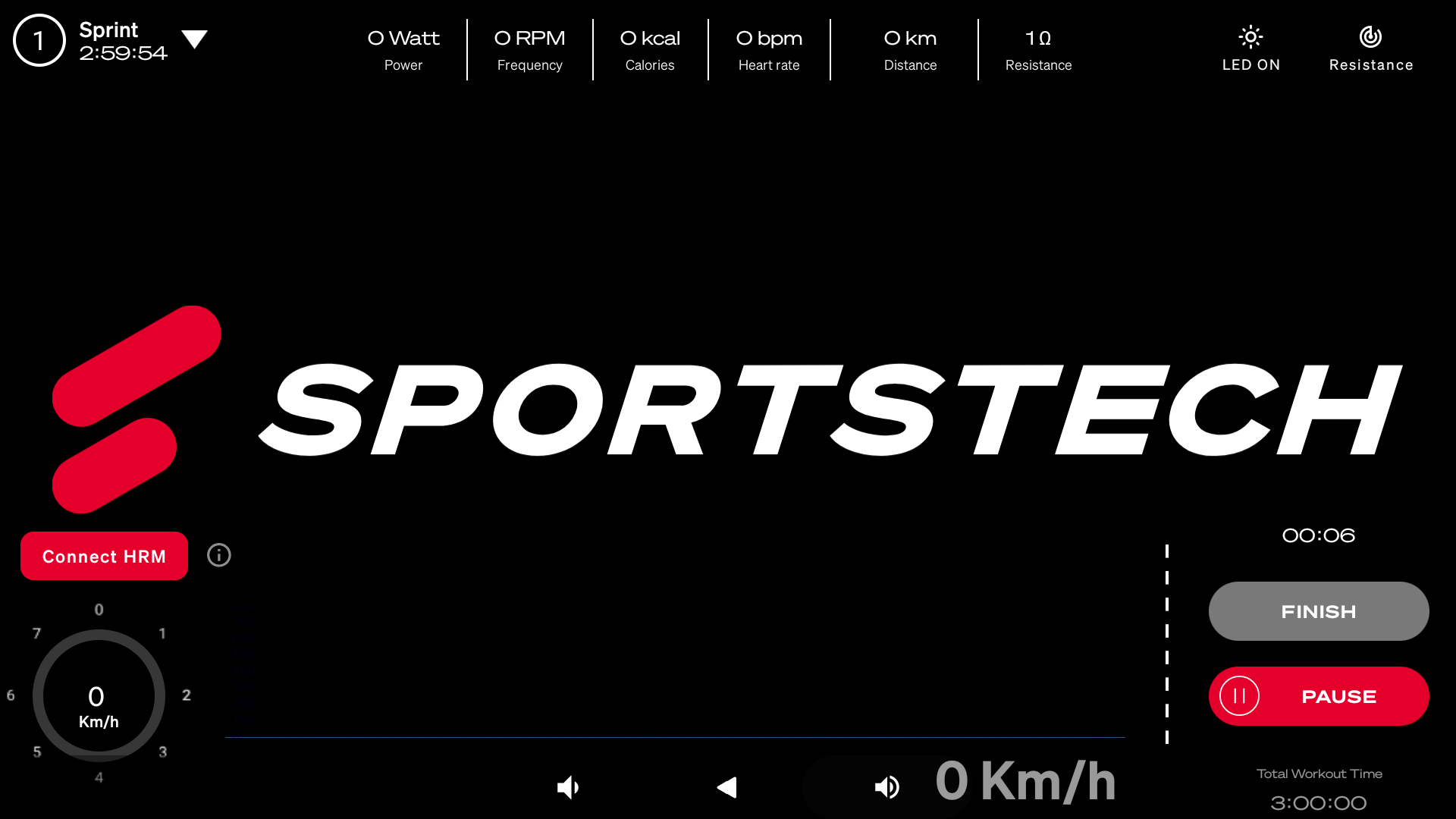
You can use the sBike freely in Quick Start mode – without a Premium subscription.
Available features:
• Quick Start workout (free riding, up to 3 hours)
• Manual resistance adjustment (levels 1–24, using + / − or direct selection)
• LED lighting (8 color presets + automatic mode)
• Connect a heart rate belt (HRM) and Bluetooth headphones
Metrics displayed:
• Watts (power)
• RPM (frequency)
• kcal (calories)
• bpm (heart rate)
• km (distance)
• Ω (resistance)
• Time and km/h
Advanced content such as classes or video workouts is not included in these views.
Troubleshooting & quick fixes
The display volume is too low.
1. There are two buttons beneath the display for adjusting the volume on the sBike. The right button increases the volume and the left button decreases it.
2. During a workout, you can change the trainer's volume by tapping Options and then Music.
My screen won't start (it stays black).
If an error occurs while installing an operating system or firmware update and the recovery mode screen appears, please follow these steps:
1. Select an option: Use the volume buttons to select the "Reboot system now" option.
2. Confirm your selection: Press the "Power" button to confirm your selection and restart the system. These steps are also displayed on the screen.
How to redeem a coupon code for your subscription.
1. Sign in to the Sportstech Live app.
2. Tap the Profile tab at the bottom of the screen.
3. On the profile page, click Memberships.
4. On the Membership details page, tap Start free trial.
5. On the Subscription plans page, you will find the "Use coupon code" option below the plans.
6. Tap "Use coupon code" – a pop-up will appear where you can enter your coupon code.
7. Enter the coupon code in the designated field.
Note: Coupon codes are case-sensitive and must be entered exactly as provided.
8. Tap Confirm.
9. You will then be redirected to the subscription confirmation page within the app.
10. Finally, tap "Let's go" to activate your subscription.
How do I change the time zone?
Tap the hamburger menu (three lines) in the top left, then select "Settings", go to "Date & time", turn off the "Use network time zone" option, select the desired time zone, select your region and confirm, select the desired time zone again and confirm, then confirm using the Back button.
How do I turn the display on and off?
To turn the sBike off or on, press and hold the S button beneath the display until the screen turns off or on. If you are not going to use the sBike for an extended period, we recommend unplugging it from the power supply.
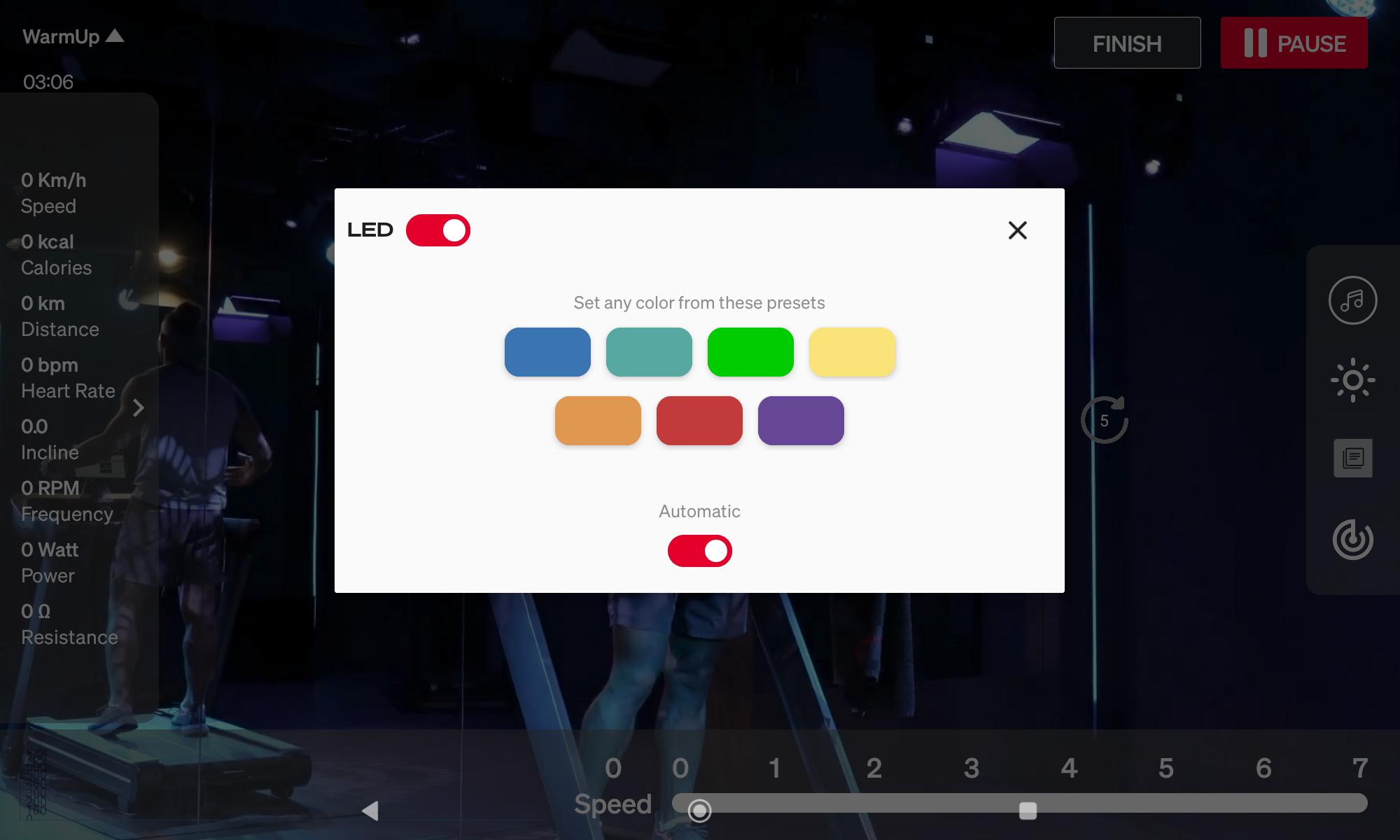
How do I turn the LED lights on and off? Selecting a color.
1. Start a workout using Quick Start or select a workout program.
2. Tap LED in the top right.
3. A window will open where you can turn the LEDs on and off in the top left.
How to change the language on your sBike.
1. Open Settings: Go to the main menu on your sBike and open "Settings".
2. Select a language: In Settings, tap "Language".
3. Change the language: Select your preferred language from the list, then tap "Save" to confirm the change.
After following these steps, the language on your sBike should be changed accordingly.
Unable to connect to Wi-Fi.
If you are having trouble connecting your sBike to your Wi-Fi network, try these steps:
1. Set up a hotspot on your mobile device and make sure it is active.
2. Connect your sBike to the hotspot on your mobile device. If the connection is successful, this could indicate a problem with your home Wi-Fi network.
3. Check your router settings. Make sure your Wi-Fi is set to WPA2 security and check the security key to make sure it is correct.
4. Now try connecting your sBike to your home Wi-Fi network again.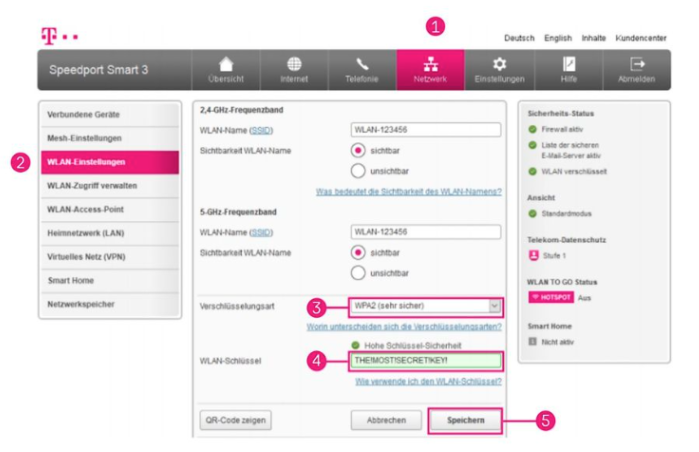
Connect Bluetooth headphones to the sBike.
After following these steps, your Bluetooth headphones should be successfully connected to the sBike:
1. Turn on your sBike.
2. Go to the Bluetooth settings on the sBike.
3. Search for available Bluetooth devices.
4. Select your headphones from the list of available devices. If necessary, confirm the connection on the sBike screen.
The handlebar wobbles / is unstable.
The handlebar can be secured using the front adjustment knob. If it comes loose, tighten the knob. You will need a 16 mm wrench to do this.
Instructions for performing a hard reset on the sBike monitor: How to fix a frozen or unresponsive screen
Here is a simple step-by-step guide to help resolve monitor issues as quickly and easily as possible.
Please follow these steps:
- Unplug the sBike to disconnect it from the power supply.
- Press and hold either the "Volume Up" or "Volume Down" button beneath the display. While holding the button down, reconnect the sBike to the power supply.
- A white semicircle should now appear on the screen, shortly followed by the message "Erasing". You can then release the button.
- Wait a moment for the process to complete. This may take a few minutes.
- Then restart the monitor and check whether the problem has been resolved.
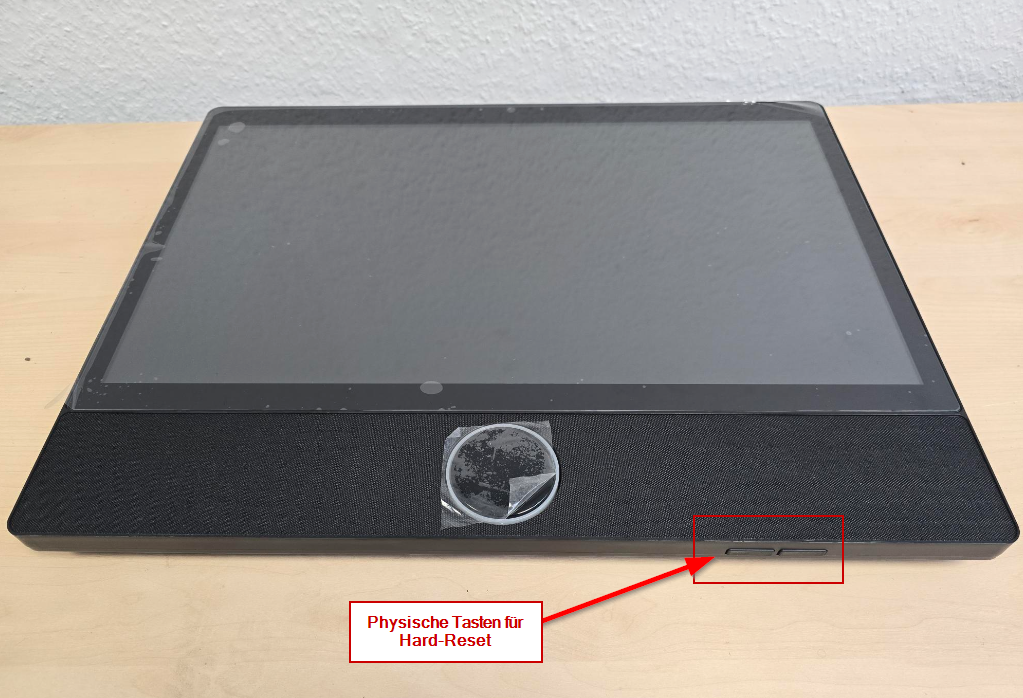
Please note that the sBike will need to be set up again afterward by reconnecting to Wi-Fi. If the problem persists, please do not hesitate to repeat these steps or contact our Customer Support team directly for further assistance. We are always here to make sure you are completely satisfied with your product.
Note: A hard reset is currently also required whenever an update is installed. In addition, as mentioned above, you should perform this hard reset if the screen stops responding to input
Instructions for performing a hard reset on the sBike monitor. For models purchased on or after 01.01.2025
Applies to: sBike V2 devices sold from early 2025
Problem: The screen is no longer responding properly, the device freezes, or problems occur after startup.
Solution: On newer V2 devices, resetting using the old button combination from previous models will not work. A standard hard reset is required.
Step-by-step instructions
1. Disconnect the device from the power supply – Completely disconnect the device from the power supply.
2. Wait 5 minutes – Then wait at least 5 minutes before reconnecting the device.
3. Restart the device – Reconnect the device to the power supply and restart it.
4. Check the Wi-Fi settings – If the problem persists, press one of the volume buttons beneath the display. This will open the volume menu.
5. Open the factory settings – Use the three dots in the volume menu to access the factory settings.
6. Check Wi-Fi – Please make sure the device is connected to a 2.4 GHz Wi-Fi network.
Important note: The older reset method of holding down the volume button while reconnecting the device to the power supply applies only to earlier models, not to V2 devices from 2025 onward.
If the problem persists: If the problem continues after the hard reset and checking the Wi-Fi settings, please contact Customer Service.
What should I do if my saddle slips?
How to prevent your saddle from slipping.
- Unscrew the fastening knob completely and remove the saddle holder, including the saddle.
- Carefully remove the plastic cover using a suitable tool.
- Remove the nut from the saddle holder
- Turn the nut as shown in the next image.
- Reinstall the nut in this position
- Reattach the cover plate
- Reattach the whole assembly to the saddle post
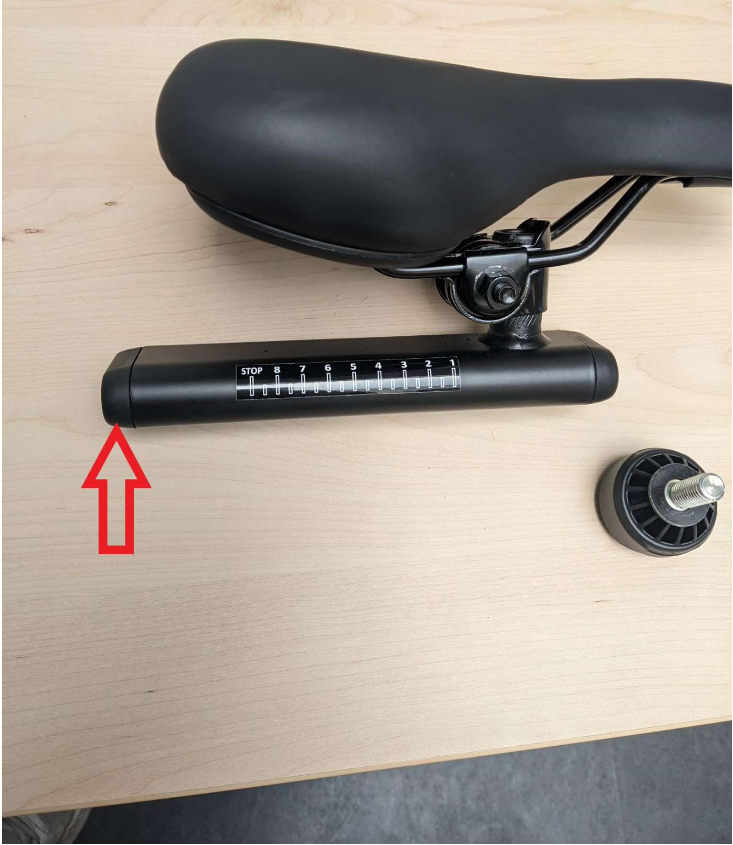
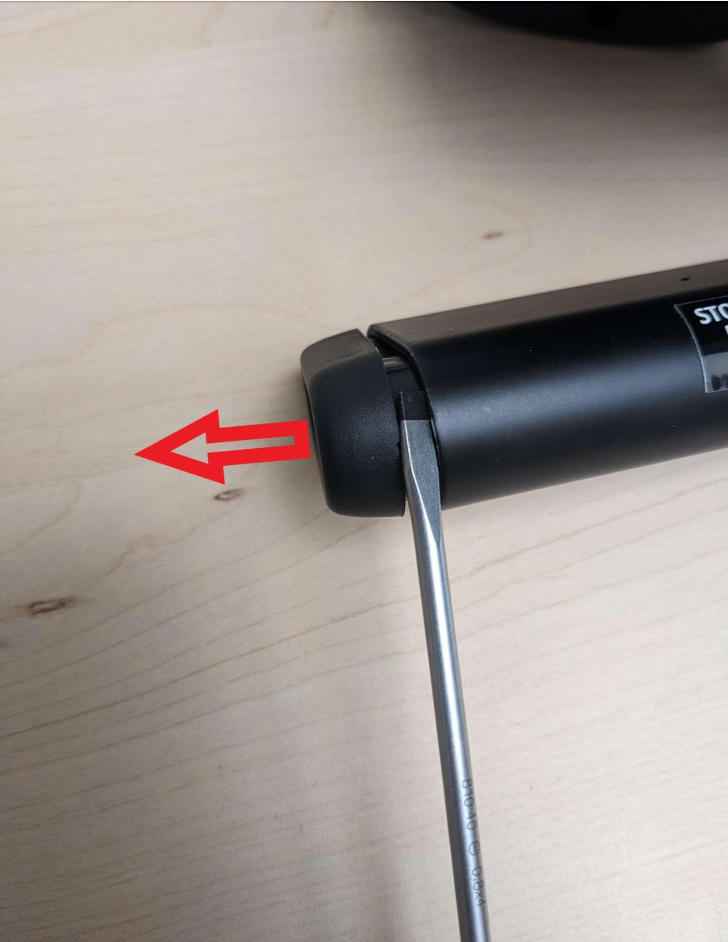
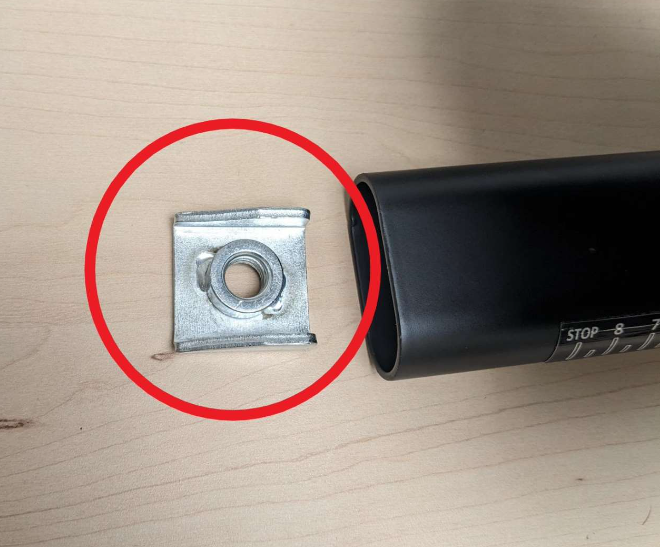
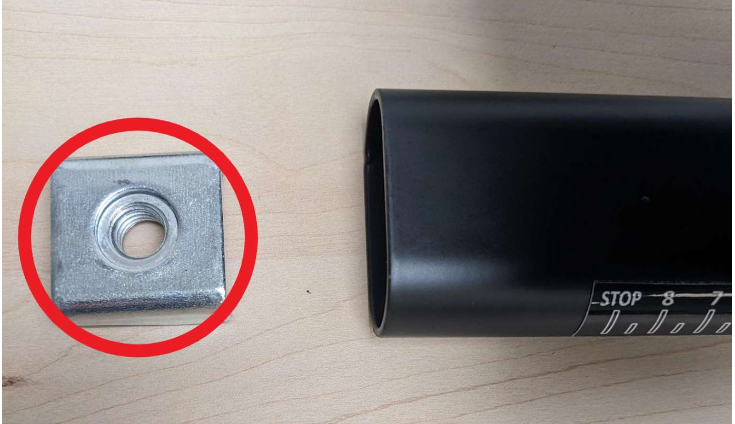
That's all there is to it. If these instructions don't help, you can order the following spare parts: sp_sbike_22, sp_sbike_23, sp_sbike_24, SP_sBike_142
You can find detailed instructions on ordering the required spare parts in this article: How can I get the spare parts I need?.
This replacement does not affect your warranty, is quick, and provides a simple solution.
Cleaning & care
Electrical hazard!
- Please completely disconnect the device from the power supply before cleaning to avoid serious or fatal electric shock injuries.
- Make sure no moisture gets onto the power adapter or cable. Do not open or repair them yourself. If you experience any problems, please contact our Customer Service team.
- Do not use the device if any components are loose or damaged, to prevent injuries and property damage.
- If possible, tighten any connections and arrange for a repair if necessary. If you are unsure, please contact our Customer Service team.
Cleaning
- After your workout, wipe sweat off the device with a dry or slightly damp cloth to extend its service life.
- Do not use harsh cleaning agents to avoid damage. Make sure no moisture gets inside the housing.
- Make sure the rating plate and other stickers remain intact and legible to ensure proper use.
Maintenance
- Please check that the device is in good condition before and after every workout to ensure your safety.
- Check that all fasteners and protective covers are in place and undamaged to prevent accidents.
- Before every workout, check that the screws for all adjustable parts (front post, saddle post, saddle) and all other connections are engaged and tightened securely. Tighten them if necessary to ensure stable use.
- The device is equipped with sealed bearings, so lubrication is not required.
Storage
- When moving the device on its wheels, lift it only by the handle on the rear stabilizer to avoid damage.
- When moving the device, make sure the monitor does not hit anything, swing around, and/or collide with anything, to protect the device.
- The device must be stored in a dry, clean place, free from explosive or flammable materials and dust, to ensure optimal performance.
- The ambient temperature should be within the permitted operating range (see technical specifications).
- Avoid direct sunlight to prevent possible damage to the device.
- Protect the device from dust during prolonged storage to ensure it continues to function properly.
Repair instructions
Opening the sBike housing
Video instructions on YouTube
Replacing the sBike motor
Video instructions on YouTube
Replacing the sBike bearing
Video instructions on YouTube
The spare parts list includes all the individual components used, from assembly through to use.
The manual contains all the important information.